How to Check If Your PC Can Run a Game and Update Drivers for Better Compatibility
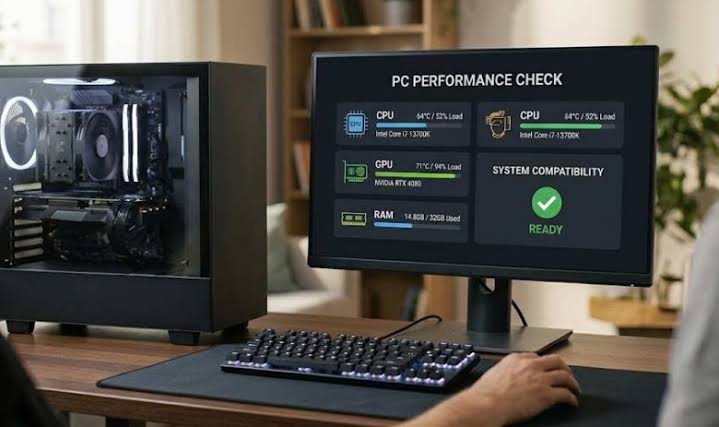
Finding a new PC game is exciting, but discovering that it runs poorly on your computer can be disappointing. A game might freeze during loading, display graphics errors, or struggle to maintain smooth gameplay. Before downloading a large game or spending money on it, take a few minutes to check your computer’s specifications and make sure its drivers are up to date.
The good news is that you don’t need to be a computer expert to get started. By comparing hardware requirements, checking driver versions, and making a few sensible adjustments, you can better understand whether your PC is ready for your next gaming adventure.
Check Your PC’s Specifications Before Installing a Game
Every PC game has specific hardware and software requirements. These usually include a processor, graphics card, amount of RAM, available storage, and supported operating system. Comparing these details with your computer’s specifications is the first step toward understanding compatibility.
Find Your Computer’s Hardware Details
On Windows, open Settings and navigate to System, then About, to view your processor and installed RAM. For additional information, type dxdiag into the Windows search box and open the DirectX Diagnostic Tool. Its System and Display tabs provide useful details about your computer and graphics hardware.
Next, visit the game’s official store page or developer website and look for its minimum and recommended requirements. Minimum specifications indicate the baseline needed to run the game, while recommended specifications generally target a more comfortable experience.
Use an Online Game Compatibility Checker
Checking every hardware detail manually can take time, particularly if you’re unfamiliar with PC components. An online compatibility resource can make this process easier.
The Can I run it tool from IObit can help you assess whether your computer meets a game’s hardware requirements. Review the results alongside the game’s official specifications, especially if you plan to play a demanding title.
Remember that meeting minimum requirements doesn’t guarantee smooth gameplay. Performance also depends on graphics settings, cooling, background applications, and how well the game is optimized.
Why Updated Drivers Matter for Gaming
Your computer’s hardware relies on drivers to communicate properly with Windows and software applications. Graphics drivers are particularly important because they help games interact with your GPU.
Outdated or incompatible drivers can sometimes contribute to graphical glitches, crashes, or performance problems. Updating them may resolve certain issues and improve compatibility with newer games. However, a driver update cannot compensate for hardware that falls below a game’s requirements.
Check for Outdated Drivers
Start by opening Windows Device Manager and expanding categories such as Display adapters, Sound, video and game controllers, and Network adapters. You can inspect individual devices to check their properties and driver information.
For graphics updates, you can also visit the official website of your GPU manufacturer. NVIDIA, AMD, and Intel provide driver resources for their supported hardware.
Choose drivers that match your specific device and Windows version. Avoid downloading installation files from unfamiliar websites, as incorrect drivers can cause additional problems.
Update Drivers With Driver Booster
If checking multiple devices individually feels complicated, a dedicated driver management utility may simplify the process. IObit’s Driver Booster is designed to scan a computer for outdated drivers and help users manage available updates.
You can explore the update drivers option through IObit’s official Driver Booster page to learn about its features and supported devices.
Before installing updates, follow these practical precautions:
- Download the software from the official website and review the installation options.
- Scan your computer to identify drivers that may need attention.
- Check the proposed updates and confirm they are appropriate for your hardware.
- Create a restore point or ensure you have a suitable recovery option before making significant driver changes.
- Install the selected updates and restart your computer if required.
Driver Booster can make driver maintenance more convenient, but no utility can guarantee that every update will improve gaming performance. If a device is working correctly, consider whether an update is necessary before changing its driver.
Test Your Game After Updating Drivers
Once you’ve checked compatibility and updated any necessary drivers, launch the game and see how it performs. Start with moderate graphics settings rather than immediately selecting the highest available quality.
Pay attention to loading times, visual glitches, frame-rate drops, and unexpected crashes. If the game runs poorly, lower demanding settings such as shadows or resolution and test again.
You should also close unnecessary applications before playing and ensure your PC has sufficient free storage. If problems continue, revisit the game’s system requirements and check whether your processor, graphics card, or RAM is limiting performance.
Final Thoughts
Checking your PC before installing a game can save time and help you avoid unnecessary frustration. Start by comparing your hardware with the game’s requirements, then investigate driver issues if compatibility or performance problems appear.
An online compatibility checker can help you assess your system, while Driver Booster offers a convenient option for identifying and managing driver updates. By combining these tools with sensible settings and careful troubleshooting, you can make better-informed decisions and enjoy a more reliable gaming experience.